Cear core
Dedicated transmitter for Cear pavé | CP-5000-WT / CP-5000-BK
Cert. 001-A20996 / Model 8M581F64- Cear core
- Cear corePrivate Mode Setting
- Product Overview & Specifications
- What's in the Box
- Parts & Functions
- Connecting a Device (Wired)
- Connecting to Cear pavé ① CearLINK
- Connecting to Cear pavé ② Unicast
- Unicast Mode Switching (Single-unit connection)
- Private Setting
- CearLINK Positioning
- Troubleshooting
- Safety Information
Cear core
Private Mode Setting
Confirm Auracast™ Mode
(Top LED should be light blue)
Settings can only be configured in Auracast™ mode.
Mode Check
- Press ⊕ ⊖ buttons simultaneously
- Check the top LED color
Top LED Color
Private Mode Yellow 🟡
Public Mode White ⚪
Mode Switch
- Double-click ⊕ ⊖ buttons simultaneously
- Cear core will restart.
(Restart takes approx. 1 minute)
Private Mode
Only pre-configured Cear pavé units can receive.
Public Mode
All Cear pavé units can receive.
Product Overview & Specifications
Product Overview & Specifications
Cear core is a dedicated transmitter that lets you enjoy CearLINK with multiple Cear pavé units connected.
※ Cear core and the playback device are connected by wire. In addition to Auracast™, Gaming Mode and Music Mode are available in Unicast (Unicast) 1-to-1 connection.
| Body Size | 40(W) × 40(H) × 40(D) mm |
|---|---|
| Body Weight | approx. 55g |
| Input | USB Type-C, LINE IN (3.5mm stereo mini jack), Optical digital |
| USB | USB Audio compatible & USB charging |
| Continuous Use | approx. 10 hours |
| Charging Time | approx. 3 hours ※ |
| Country of Origin | China |
| Bluetooth® | Ver. 5.4 |
| Supported Codec | LC3 |
※ This product has a built-in lithium polymer battery.
※ Use time and charging time are reference values based on our tests. Actual values vary with usage and equipment.
What’s in the Box
- Cear core unit
- USB Type-C cable × 1
- Optical digital cable × 1
- Stereo mini cable × 1
- User Manual (with Warranty Card)
- Private Mode Setting QR Code × 2
Parts & Functions
Parts & Functions
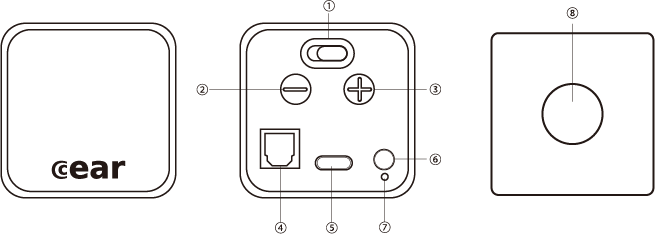
| No. | Name | Description |
|---|---|---|
| ① | Power switch | Power switch of Cear core. |
| ② | Volume − | Lowers the volume of connected Cear pavé units. |
| ③ | Volume + | Raises the volume of connected Cear pavé units. |
| ④ | Optical Digital input | Optical digital input connector. |
| ⑤ | USB IN port (for USB Type-C cable) | Used for charging and USB audio. |
| ⑥ | LINE IN port (for 3.5mm stereo mini) | For analog connection with audio equipment. |
| ⑦ | Reset switch | Forces Cear core power to OFF. |
| ⑧ | LED touch sensor switch | Status indicator LED. Touch sensor switch used when changing modes. |
Button Operations & LED Actions
Button Operations & LED Actions
| Operation | Button | Action | Use |
|---|---|---|---|
| Power ON/OFF | ① | Slide left/right | Toggle ON/OFF with the slide switch. |
| Mode switching | ⑧ | Touch sensor 3-sec touch | Switch between modes. Auracast™ → LED Cyan Unicast Gaming → LED Green |
| Unicast mode switching | ⑧ | Touch sensor 1-sec touch | Switch between Unicast modes. Unicast Gaming → LED Green Unicast Music → LED Purple |
| Pairing mode / Pairing reset | ⑧ | Touch sensor Hold 3 sec | Enters Unicast pairing mode. ※ Used when changing the device after the first time. |
| Reset | ②+③ | Press both 10 sec | Resets Cear core. ※ Returns to factory state. |
Battery Level Check
Battery Level Check
How to check: Press and hold Volume button ② for 3 seconds, and the LED will light up according to the remaining battery level.
| 80% or above | Blue blinks 3 times |
| 50% or above | Blue blinks 2 times |
| 30% or above | Blue blinks 1 time |
| 10% or below | Red blinking |
Connecting a Device (Wired)
※ Cear core is a wired-connection-only device.
Audio from smartphones, TVs, audio equipment, etc. can be transmitted to Cear pavé.
There are 3 wired connection methods available for your device.
- Optical Digital Input
Optical digital cable
- USB Input
USB-C cable
- Analog Input
3.5mm stereo mini plug
| Playback Method | LINE | USB | Optical |
|---|---|---|---|
| Analog input playing When the stereo mini plug is inserted, USB / Optical digital playback is not possible. | ● Playing | △ | △ |
| USB Audio playing When USB Audio is connected and playing, USB Audio playback takes priority. | - | ● Playing | △ |
| Optical digital playing When USB Audio is stopped during USB connection, optical digital equipment playback takes priority. | - | △ | ● Playing |
| Power | USB charging always available | ||
● Connected △ Either possible - Not connected
Compatible devices: Smartphone, TV, PC, Projector, and other audio devices
Connecting to Cear pavé ① CearLINK
CearLINK — Multi-unit connection — | LE Audio Auracast™
Set Cear core to CearLINK mode. (Auracast™)
When Cear core is powered on, it starts in CearLINK mode.
POINT! Connecting Cear core to a device via wire and playing music makes it easier to confirm the connection.
Set Cear pavé to “CearLINK” reception state.
Set Cear pavé to Pairing Mode 2 “CearLINK” reception state.
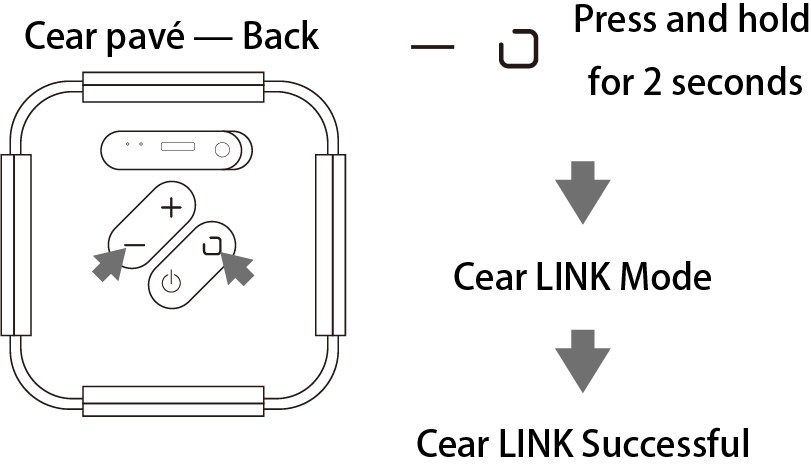
① Press and hold the multi-function button on the back of Cear pavé and the Volume − button simultaneously for 2 seconds.
② Auracast™ search starts when “Cear Link Mode” voice is heard.
③ Auracast™ reception is completed when “Cear Link Success” voice is heard.
Operation buttons: Press and hold “−” and “□” on the back of Cear pavé simultaneously for 2 seconds
“−” + “□” press and hold simultaneously for 2 seconds
Connecting to Cear pavé ② Unicast
Unicast — Single-unit connection — | LE Audio Unicast
Set Cear pavé to Pairing Mode 1.
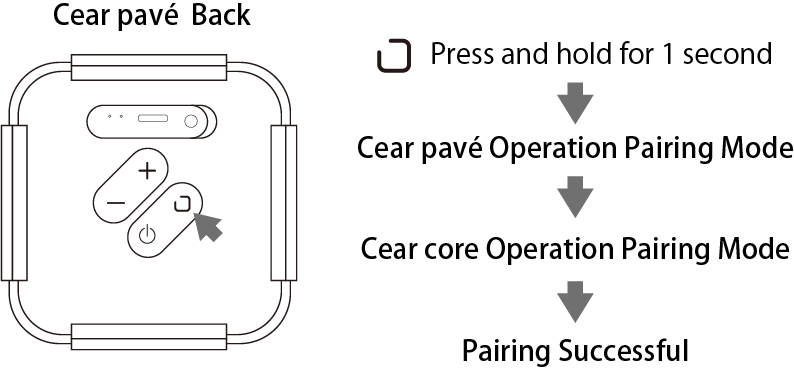
- Press and hold the multi-function button on the back of Cear pavé for 2 seconds.
- “Pairing Mode” voice will be heard — searching for device.
- Unicast reception starts when “Pairing Success” voice is heard.
Operation button: Press and hold “□” on the back of Cear pavé for 1 second → Enters Pairing Mode
※ Cear pavé LED indicator blinks red and blue alternately.
Set Cear core to Unicast pairing mode.
- First time: When the touch sensor switch changes to Unicast mode, pairing mode starts automatically. ※ Touch sensor LED blinks red and blue alternately. “Pairing Mode” voice will be heard — searching for Cear core device.
- Second time onwards: Press and hold the touch sensor for 3 seconds to switch to Unicast mode.
Unicast Mode Switching (Single-unit connection)
LE Audio Unicast
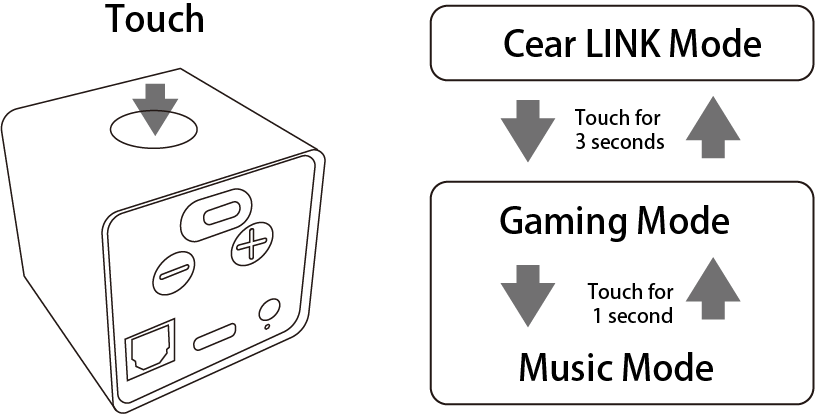
During Unicast connection, you can switch between Gaming Mode and Music Mode by operating the touch sensor switch.
Cear core Operation
- Gaming Mode
LED Green Solid
A mode with low latency comfortable for gaming.
- Music Mode
LED Purple Solid
A music listening mode that prioritizes sound quality.
Mode Switching Flow (Touch Operation)
CearLINK Mode
Touch 3 sec
Gaming Mode (LED Green)
Touch 1 sec
Music Mode (LED Purple)
Private Setting
LE Audio Auracast™
Private mode is a mode that connects only with Cear pavé units that have Cear core connection information pre-set. The default setting is Public mode.
Cear pavé App Operation

Connect Cear pavé unit with Cear pavé App and tap Cear Link Connect

Tap Private mode

Enter the Name and Pass written on the enclosed sticker. Name and Pass can be entered directly or scanned via the QR button using the device camera.
Tap Send to pavé. CearLINK information setting is completed on the Cear pavé unit and the power will turn OFF.
Cear pavé Operation
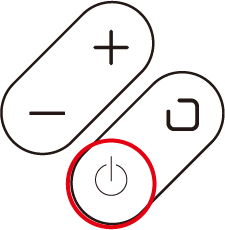
Turn on Cear pavé power with the unit power button.
※ Restart completes the setting.
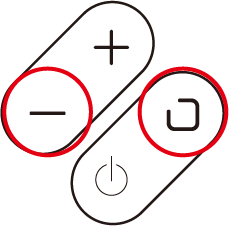
Start Cear Link Mode. Press and hold “−” and “□” on the Cear pavé unit simultaneously for 2 seconds. CearLINK reception and playback start.
Cear core Operation
Mode Check
Press ⊕ ⊖ buttons simultaneously, and check the LED color of the touch sensor switch.
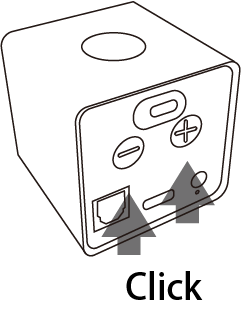
- Private Mode
LED: Yellow
- Public Mode
LED: White
Mode Switch
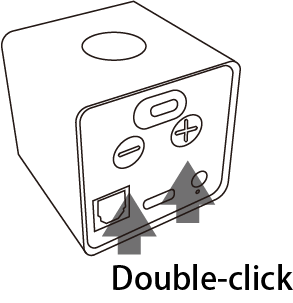
Double-click ⊕ ⊖ buttons simultaneously; Cear core will restart (approx. 1 minute).
After restart, press ⊕ ⊖ buttons simultaneously again and check the LED color of the touch sensor switch.
CearLINK Positioning
CearLINK Auracast™
The positioning function activates in CearLINK state.
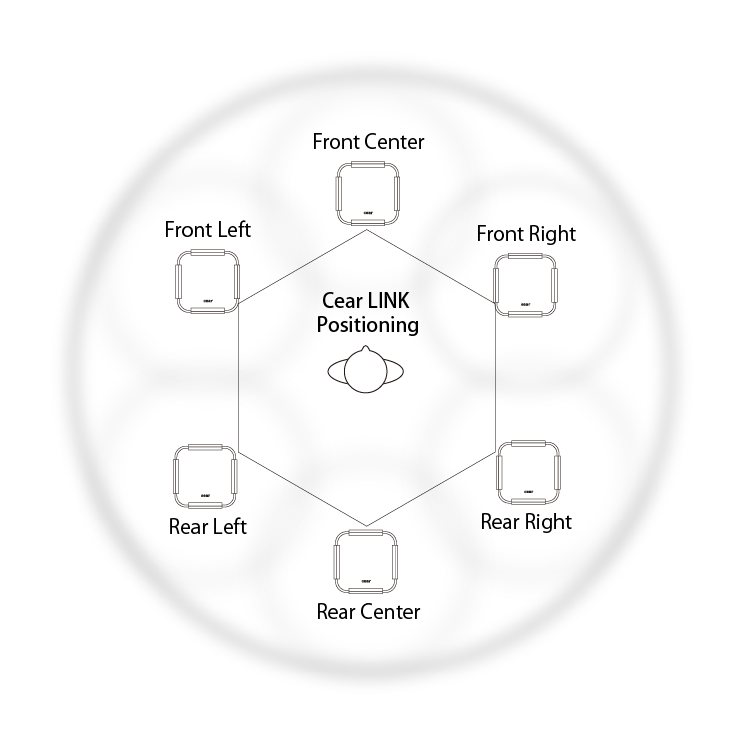
The positioning function activates in CearLINK state and is for configuring the placement of Cear pavé units when multiple units are connected.
Cear pavé positions can be changed to:
- Front Center
- Front Left
- Front Right
- Rear Center
- Rear Left
- Rear Right
No strict distance regulation or precise installation is required — placement is easy and flexible.
Troubleshooting
Troubleshooting
| Issue | Cause | Solution |
|---|---|---|
| Unit does not power on | Cause: Low battery ※ The unit may not be fully charged immediately after purchase. | Solution: Please fully charge before use. |
| Cause: Battery depleted | Solution: Charge via the USB connector on the rear. | |
| Unit does not power off | Cause: An error has occurred due to a malfunction | Solution: Performing a reset operation may resolve the issue. |
| LED stays on (other than during charging) | Cause: An error has occurred due to a malfunction | Solution: Performing a reset operation may resolve the issue. |
| Buttons are unresponsive | Cause: An error has occurred due to a malfunction | Solution: Performing a reset operation may resolve the issue. |
| Cannot pair | Cause: Auto-connecting to a previously paired device / devices are too close together | Solution: Performing a pairing reset may resolve the issue. |
| Cause: Device does not enter pairing state | Solution: Performing a reset operation may resolve the issue. | |
| No sound | Cause: Not connected | Solution: Please check that the device and Cear pavé are connected. |
| Cause: Volume is too low | Solution: Please check the volume on the source device. Each pavé unit has its own volume. Please adjust accordingly. | |
| Cause: Cable disconnection | Solution: Please check whether the cable you are using is disconnected. |
Safety Information
Safety Information
🔴 DANGER
- May cause death, blindness, or serious injury due to fire, electric shock, heat, ignition, leakage, rupture, or accidental ingestion.
- Do not use, store, or charge in places with high moisture, direct sunlight, or high temperatures such as inside a car.
- Do not put in fire or heat. May cause injury or damage due to leakage or rupture.
- Do not use any USB cable other than the supplied one. May cause rupture or electric shock.
- Do not disassemble, modify, or repair. May cause any kind of malfunction.
- Do not charge when the USB cable is wet. Short circuits may cause abnormal heat or malfunction.
- If liquid is observed leaking from the product, stop use immediately and do not touch the liquid.
🟡 WARNING
- This product is not waterproof. Do not use where water may come into direct contact with it, such as in the shower.
- If you notice anything unusual, abnormal smell, or heat during use, stop using the product immediately.
- Do not use the product under harsh conditions outside of its intended purpose.
- Keep out of reach of children and those who require supervision.
- Radio waves may affect medical equipment. Do not use wireless features where wireless devices are prohibited.
- Do not operate or use this product while driving a car, motorcycle, bicycle, kick scooter, etc., or while walking.
🔵 CAUTION
- Long-term exposure to excessive volume may permanently damage your hearing. Do not listen at high volume for extended periods.
- We recommend charging at least once every 3 months. Complete discharge may prevent further charging.
- Do not use or store outdoors or in places with high humidity.
- Do not use outside the 5–40°C temperature range. May cause leakage, heat, rupture, or malfunction.
Recycling Rechargeable Batteries
The rechargeable battery built into the device can be recycled. Please contact our support for battery removal and recycling.
Regarding Radio Waves
This product is certified as a low-power data communication system under the Radio Act. Use within Japan only.
This product uses the 2.4 GHz frequency band.
· Before using this product, confirm that no other radio station is operating nearby.
· In the unlikely event that radio interference occurs, immediately change the location or stop emitting radio waves.
· May affect the operation of electronic medical equipment. Do not use wireless devices where wireless use is prohibited.